Using the Building Blocks viewer
The Building Blocks viewer is the out-of-the-box way of exploring a Building Blocks register in a user-friendly manner: it presents the machine-readable resources published by the register (schemas, JSON-LD contexts, SHACL shapes, examples, transforms, validation reports…) as web pages you can browse, search and link to, without needing to know where each file lives.
The screenshots on this page come from the Building Blocks Examples register, a good place to try everything out for yourself.
Finding your way around
Every page of the viewer shares the same layout: a side bar on the left for navigation, and the main content on the right.
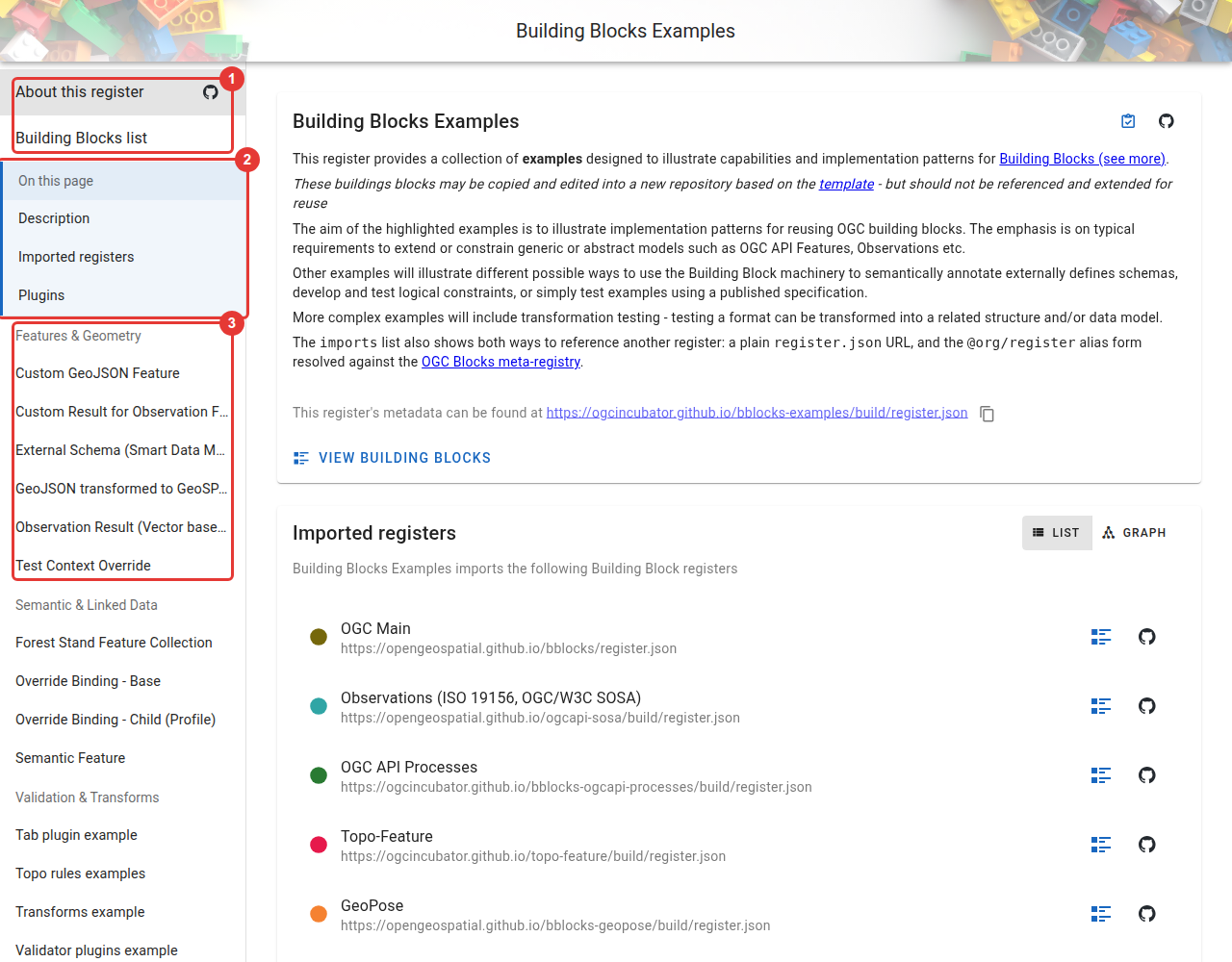
The side bar contains:
- Register navigation: About this register takes you back to the register’s home page (the button next to it opens the register’s Git repository), and Building Blocks list lets you browse and search all its Building Blocks.
- On this page: shortcuts to the sections of the page you are currently reading. They change as you move around: on the home page they point to the register description and its imported registers; on a Building Block’s Examples tab they list its examples; on the Transforms tab, its transforms.
- Highlighted Building Blocks: the Building Blocks that the register’s publisher wants to showcase,
grouped by theme, for quick access. (Publishers can mark Building Blocks with the
highlightedproperty.)
The home page is the register’s presentation card: description, links to its validation report and
repository, the address of its machine-readable register.json, and the list of other registers it
imports (each one gets its own color, which you will see again in the Building Blocks list and graphs).
Browsing and searching Building Blocks
Building Blocks list shows every Building Block in the register.
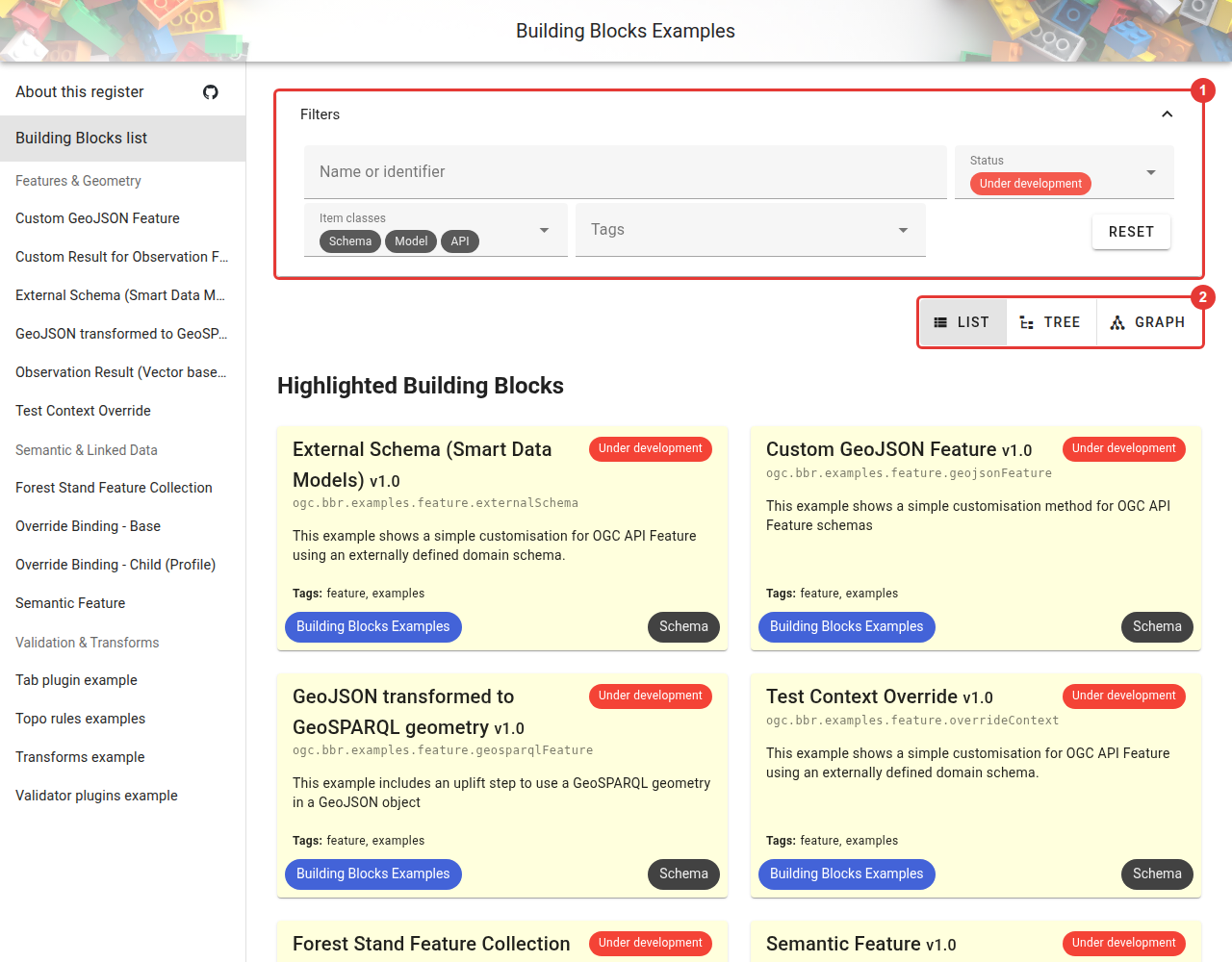
- Filters: narrow the list down by name or identifier, status (with a shortcut for showing only stable Building Blocks), item class (schema, model, API…), and tags. If the viewer shows several registers, you can also filter by register. Reset clears all filters.
- View modes: the same filtered selection can be displayed in three ways. Your choice is remembered
for the next time you visit.
- List: one card per Building Block, with its name, identifier, description, status, register and type. Highlighted Building Blocks are shown first.
- Tree: the Building Blocks organized by the dot-separated hierarchy of their identifiers, which is handy to see how a register is structured and to find related blocks together.
- Graph: the dependencies between Building Blocks drawn as a diagram. Click on any node to open that Building Block.
A Building Block page
Click on any Building Block to see all there is to know about it.
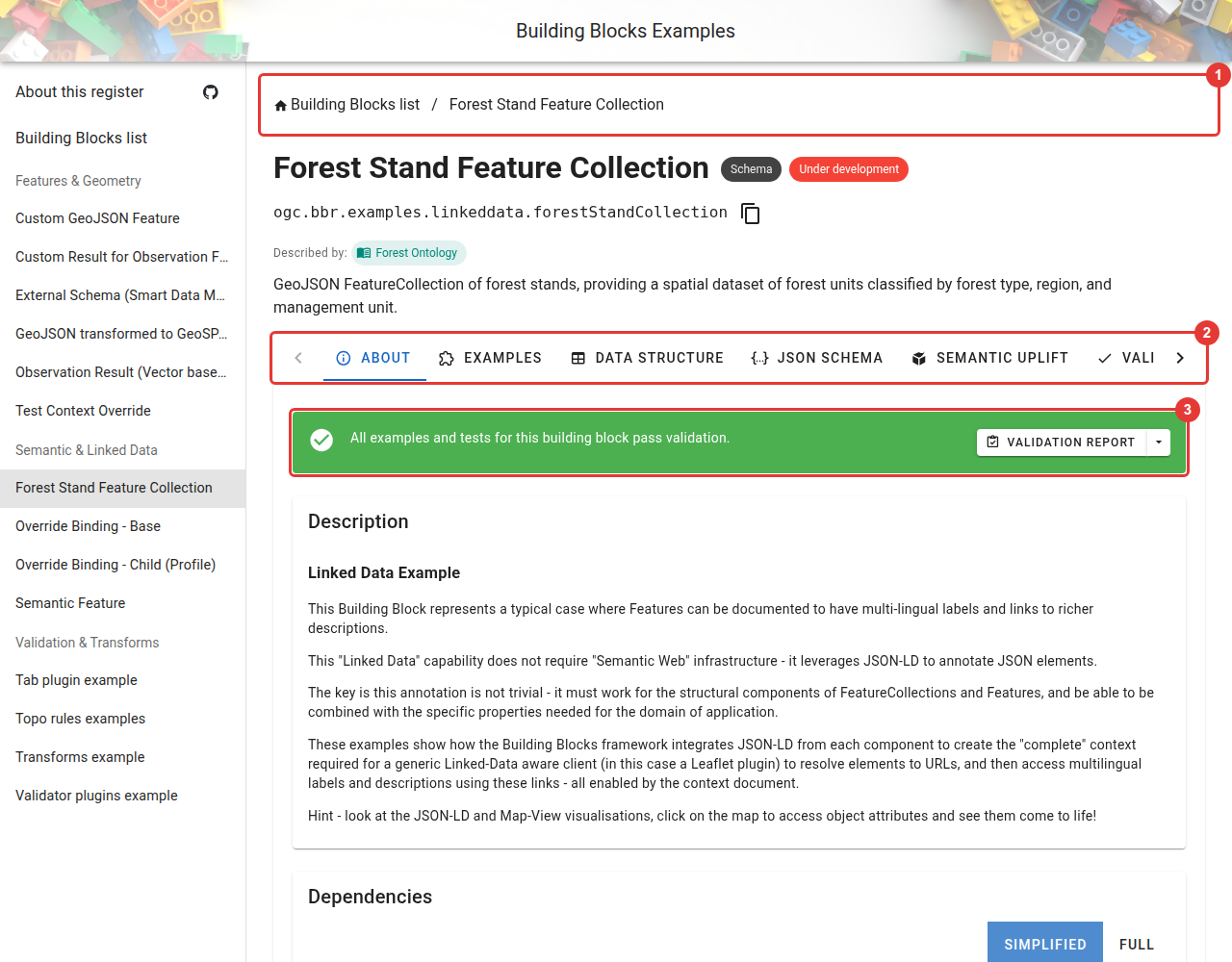
- A breadcrumb to go back to the list.
- The tabs with the different aspects of the Building Block. Only the ones that apply to this Building Block are shown, so different Building Blocks will have different tabs (use the arrows if they do not fit on screen).
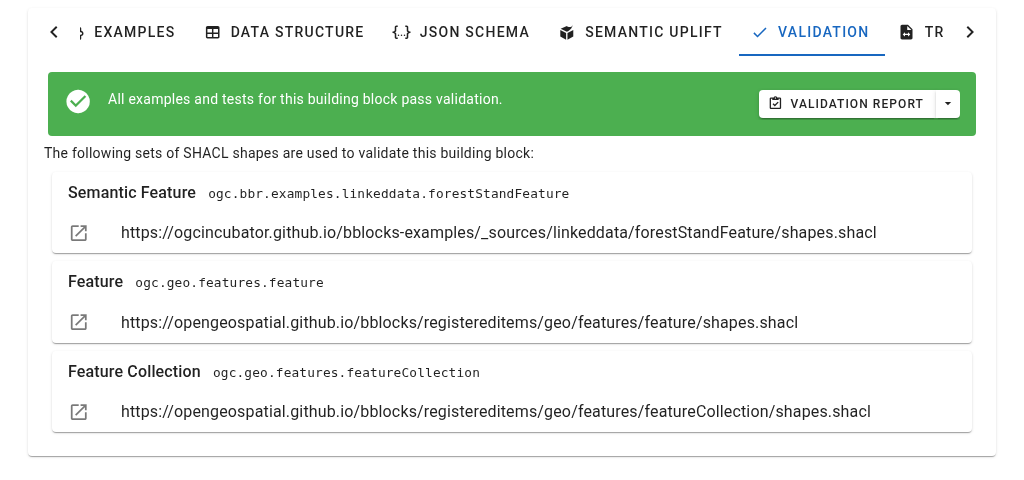
- A validation banner with the outcome of the register’s tests for this Building Block, and a link to the detailed report.
Above the tabs you will find the Building Block’s name, its type and status, its identifier (with a button to copy it) and a short description. Relationships such as Described by are shown right there as well.
Every tab has its own address: you can share the link to, for example, the Validation tab of a Building Block, and the recipient will land on that tab directly.
About
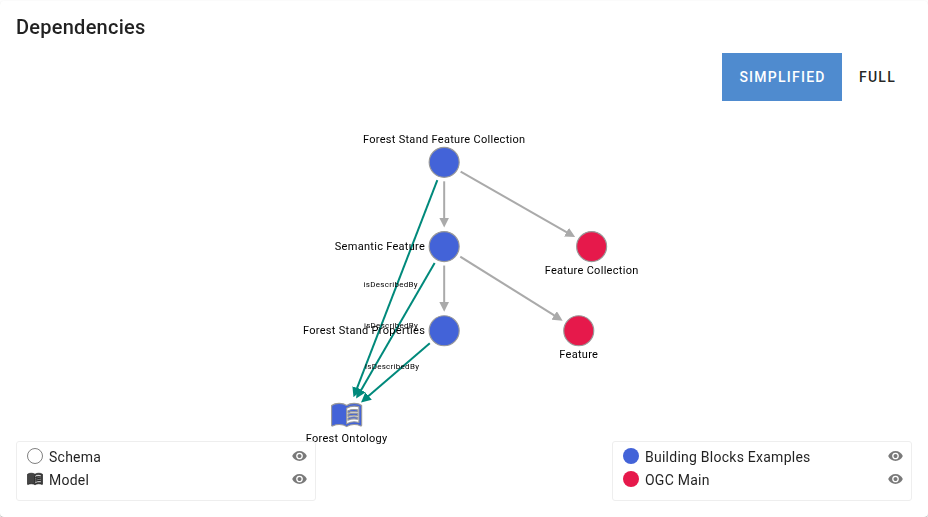
The default tab: the full description, the dependency graph, tags, references, “See also” links to related Building Blocks, and administrative information (dates, register, license and Git repository).
The dependency graph can show a Simplified view (only direct relationships) or the Full one, and has a legend that explains the node shapes and colors. Clicking on a node opens the corresponding Building Block, and clicking on the legend entries lets you hide kinds of nodes or registers. See Relationships for the meaning of the different kinds of arrows.
Examples
Each example is shown in its own panel, and you can display it in any of the formats the publisher has made available: for instance JSON, JSON-LD and RDF/Turtle, the output of any transform applied to it, or a rich visualization such as a map or a 3D view when the content allows it (see Viewer view plugins).
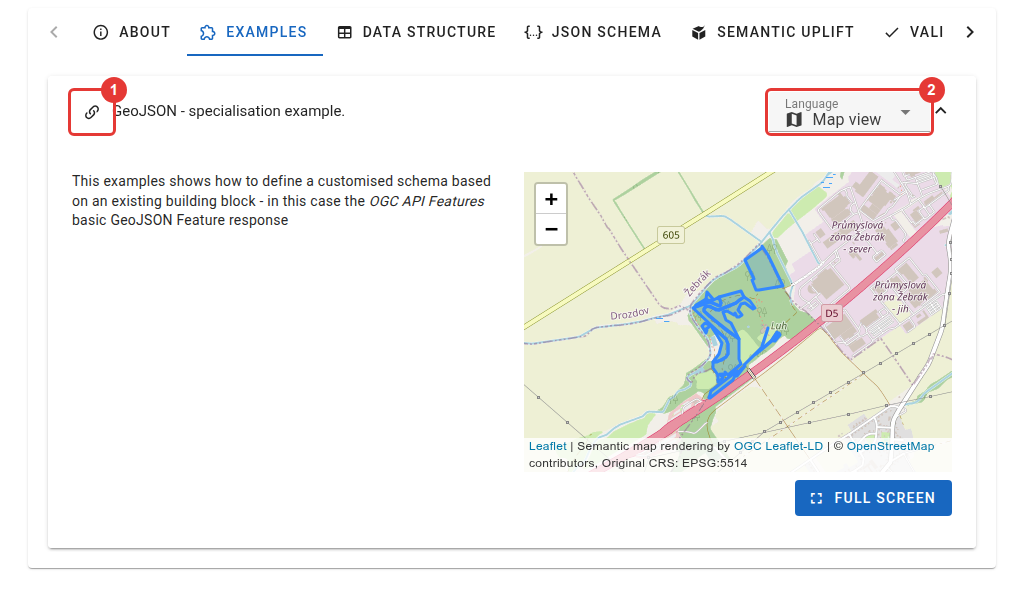
- The link button copies the address of this example, so you can send a colleague straight to it. The link also remembers the format that you have selected at that moment, which is useful to point at, for example, the Turtle version of an example.
- The language selector switches between the available formats.
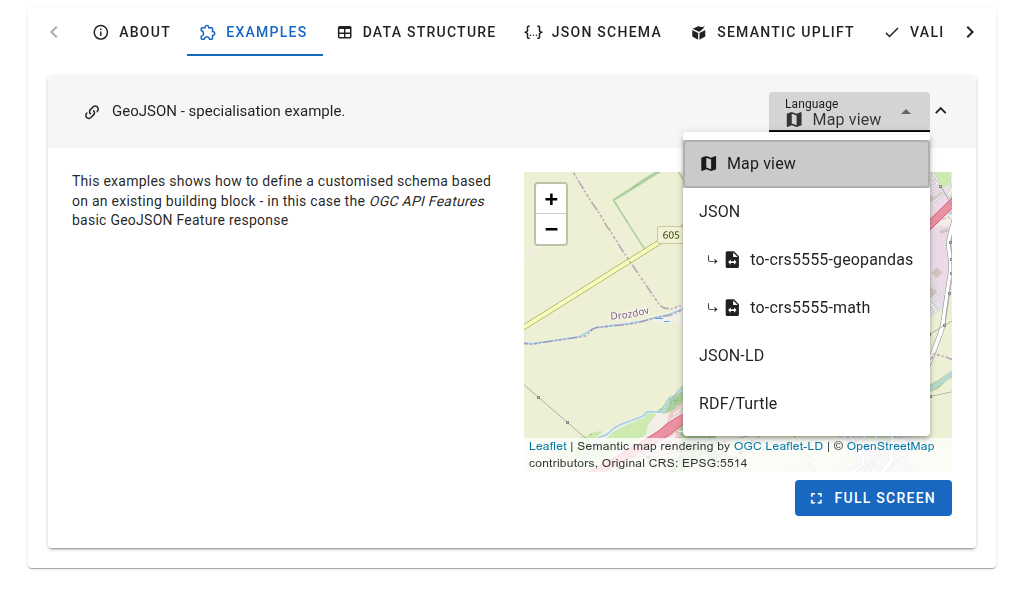
Depending on the format you can copy the content to the clipboard, download it, open it in a new window or see it in full screen.
Data structure and JSON Schema
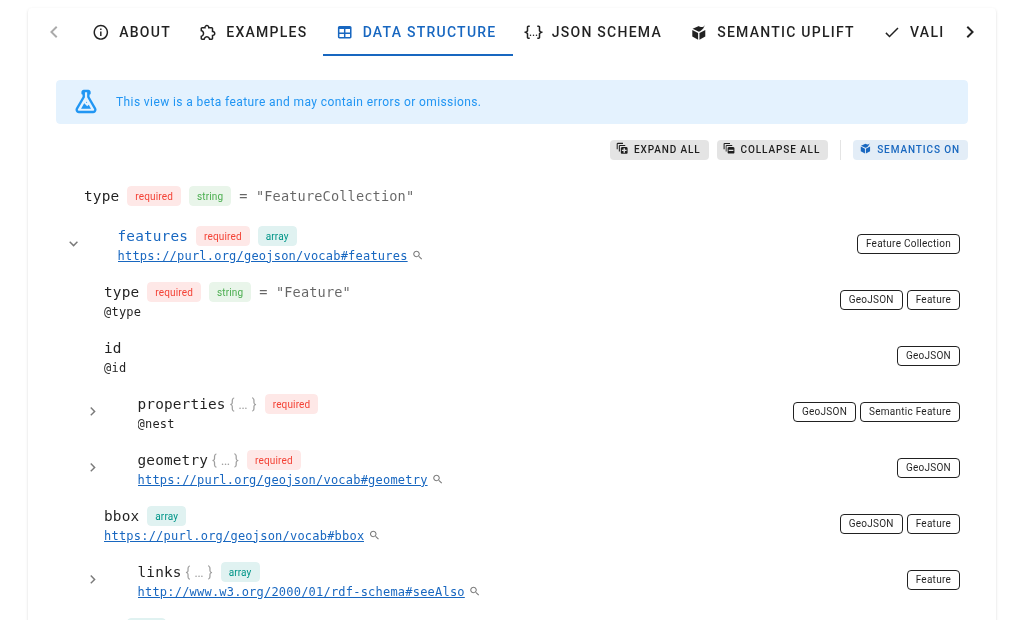
Data structure is a readable view of the schema: its properties, which are required, their types, and (when the Building Block has a JSON-LD context) the semantic concept each of them is mapped to. JSON Schema shows the schema itself, so you can copy or download it.
Semantic uplift
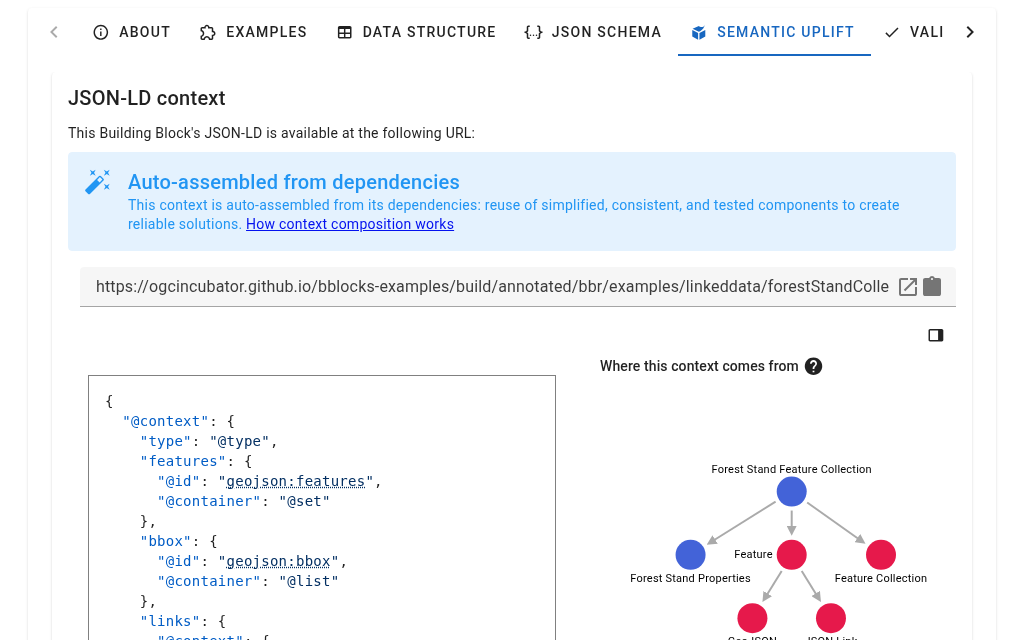
The JSON-LD context that gives the data its meaning, along with its address (for use in your own data and tools), and a diagram showing which of the Building Block’s dependencies each part of the context comes from. If the Building Block needs additional steps to go from JSON to RDF, they are described here too. See Interoperable Linked Data and Semantic uplift for details.
Validation
The SHACL shapes used to validate the Building Block’s data, including those inherited from the Building Blocks it depends on, with links to each one. See Validation.
Transforms
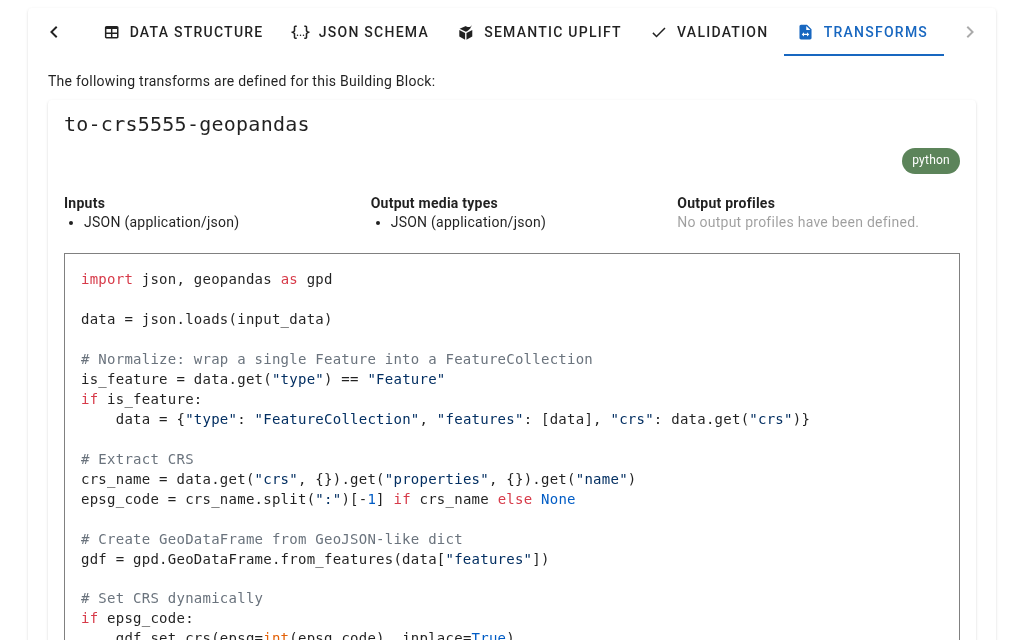
The transformations defined for the Building Block (for example, from one format or structure to another), with their accepted inputs and generated outputs, and the code that does the work. Their results for each example can be seen in the Examples tab.
Other tabs
Depending on the Building Block you may also find:
- Ontology: for Building Blocks that include an RDF ontology, a browser for its classes and properties.
- OpenAPI document and API dependencies: for API Building Blocks, the interactive API documentation and the other Building Blocks it is built from.
- Custom tabs: registers can add their own tabs, see Viewer tab plugins.
Where to go next
- Finding Building Blocks across registers.
- Creating Building Blocks, to publish your own and see them here.